
8. The slideshow and the remote
While the photos are playing, the remote lets you pause, go forward or back, zoom into a photo and open the icon menu.
On this page:
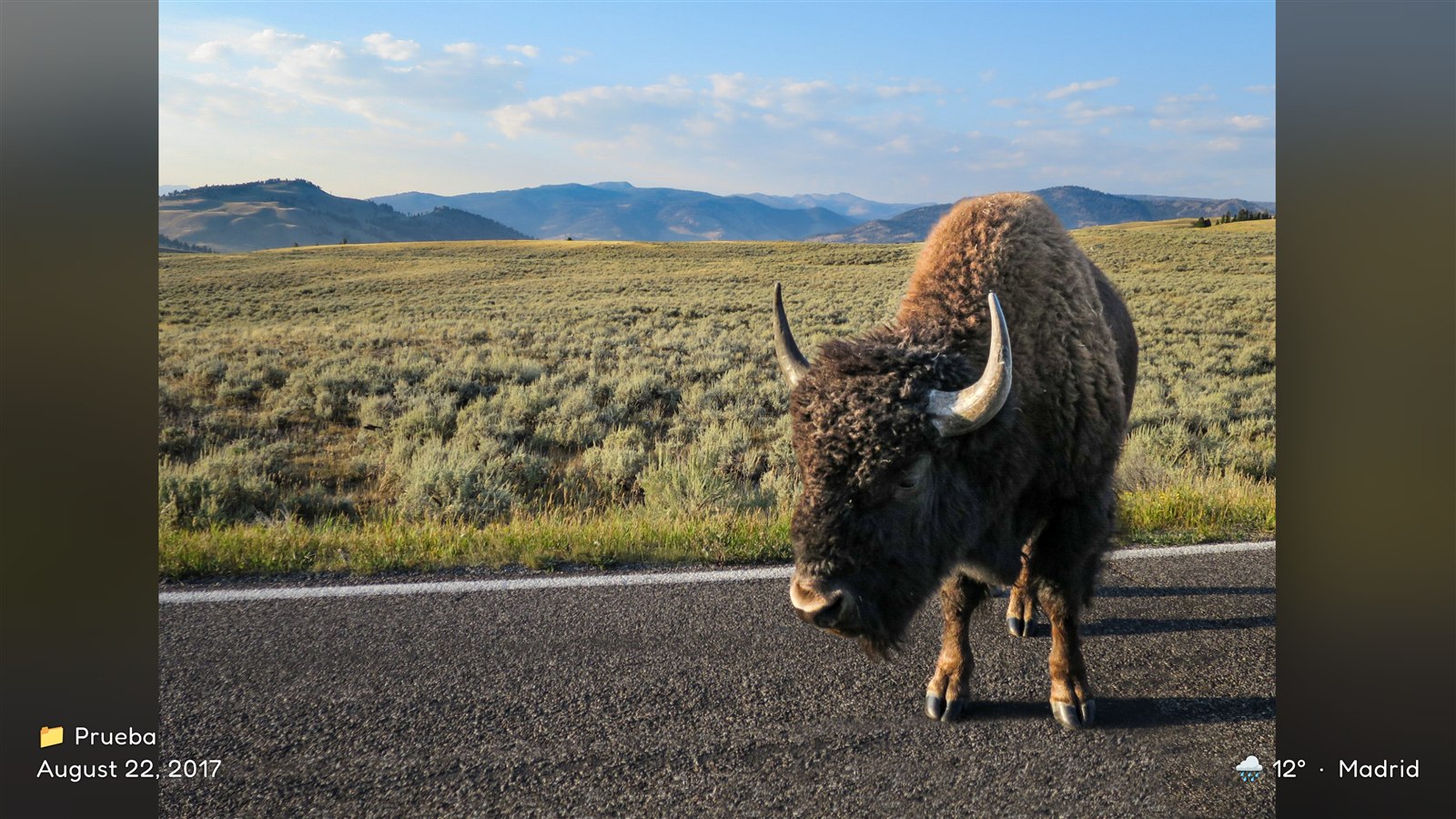
What you see on screen
- The photo, filling as much of the screen as it can.
- At the bottom left, if you turned it on: the photo’s place and date (see Album options).
- At the bottom right, if you turned it on: the current weather and the city.
- At the start, some small icons in the corners. They fade out on their own after a few seconds.
The remote keys
| Key | What it does |
|---|---|
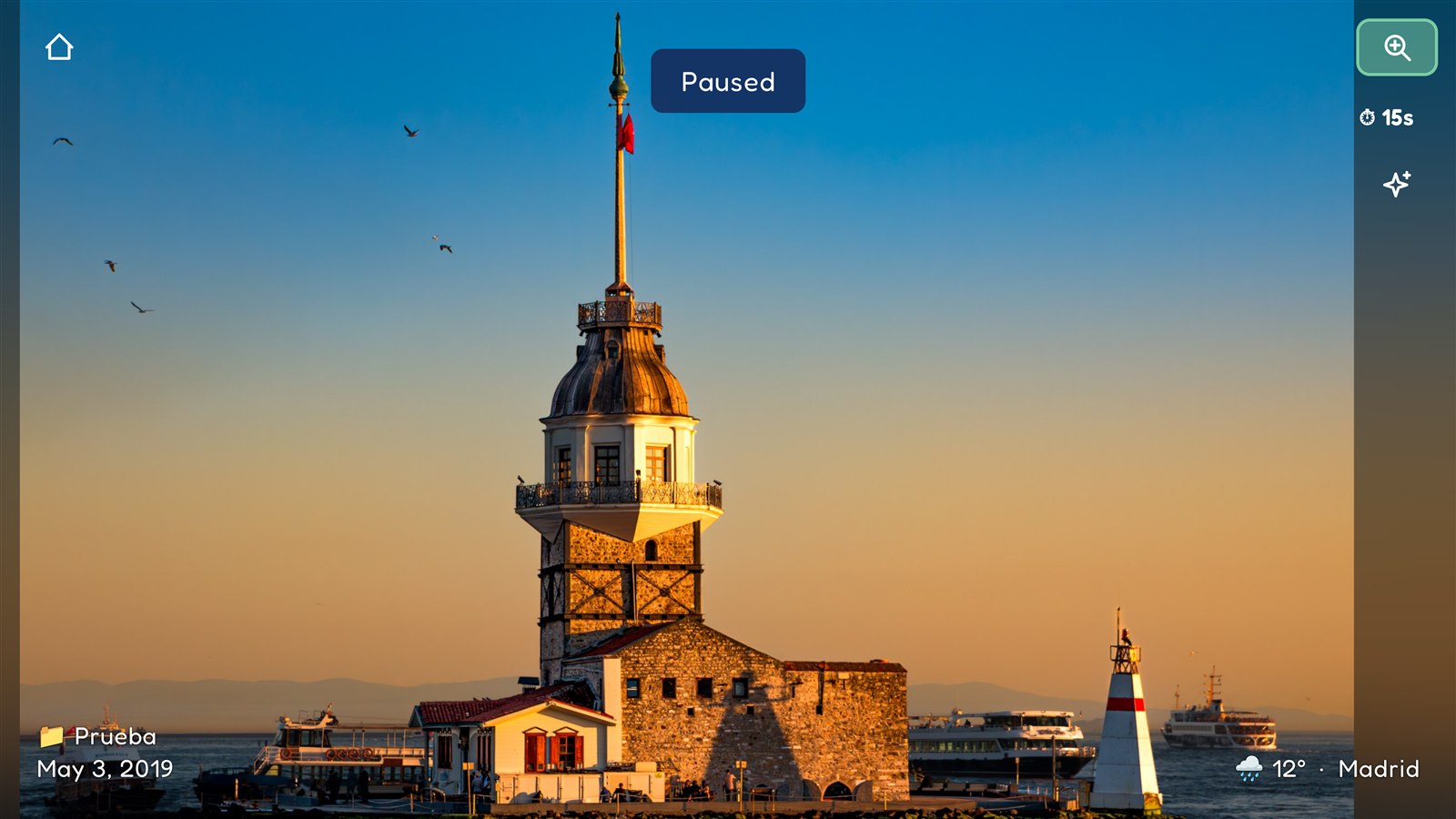
| OK or ⏯ Play/Pause | Pauses the slideshow (“Paused” appears). Press it again to continue. |
| → (or ⏭ / ⏩) | Goes to the next photo. |
| ← (or ⏮ / ⏪) | Goes back to the previous photo. |
| ↑ or ↓ | Opens the icon menu. |
| Menu (if your remote has one) | Opens My albums. |
| Back | Asks “Quit Pixetia?”. |
| Volume | Turns the music volume up or down, as usual. |
If the TV has a touch screen or you use a mouse, touching the screen opens My albums.
The icon menu
Press ↑ or ↓. The slideshow pauses and the icons light up:
| Icon | Where | What it does |
|---|---|---|
| 🏠 House | Top left | Opens My albums (“Change album”). |
| 🔍 Magnifier | Top right | Zooms into the photo. |
| ⏱ Clock (for example “15s”) | Below the magnifier | Changes the time between photos. |
| 🎵 Music | Below the clock | Changes the station. Only appears if the album has background music. |
| ✨ AI | Below the music | Opens Tell me about this photo. |
How to move around:
- ← and → go through all the icons.
- ↑ and ↓ move up and down the right-hand column.
- The chosen icon is highlighted in green. Press OK to use it.
- Back closes the menu. It also closes on its own if you don’t press anything for 10 seconds.
When the menu closes, the slideshow continues (unless it was already paused before you opened it).
Zooming into a photo
- Open the icon menu, choose the magnifier 🔍 and press OK.
- The photo is enlarged and the help appears at the bottom: “🔍 2× · OK: zoom in · Arrows: move · Back: exit”.
- Press OK to zoom in more. When it reaches the maximum, it goes back to the start.
- Use the arrows to move around the photo. If you hold them down, it keeps moving.
- Press Back to leave the zoom.
If your remote has channel buttons (CH+ / CH−) or forward and rewind buttons, they zoom in and out. The ⏯ key leaves the zoom and continues the slideshow.
When zooming, Pixetia loads the photo in more detail, so it may take a moment to look sharp.
Changing the time between photos
- Open the icon menu, choose the clock ⏱ and press OK.
- Choose a time: from 15 seconds to 5 minutes. Next to each one you’ll see how long the whole album lasts (for example “total ≈ 50 min”).
- If you want another time, choose “Custom…” and type the seconds (from 3 to 3600).
The change is saved in the album.
Messages during the slideshow
- “Connecting…”: Pixetia is reading the folders. With many photos or in the cloud it may take a little while the first time.
- If a photo takes a while to arrive, the previous one stays on screen and a small indicator appears: the slideshow hasn’t frozen.
- If there’s an error (for example, the computer is switched off), a message appears. Press OK or Menu to go to the settings, or wait: Pixetia tries again on its own, and the message shows the countdown (“Retrying in 30 s…”).
- Pixetia reads the folders again at the end of each round, so new photos you add appear in the next round.
If something isn’t working, see Troubleshooting.