
7. Album options
Each album has its own options: how long each photo lasts, how it moves from one to the next and what information appears on screen.
You’ll find them when you create or edit an album (Edit ✏ in My albums), below the folders. After changing them, press Save and use ▶ if it’s a new album, or Save (or Save and view ▶) if you’re editing it.
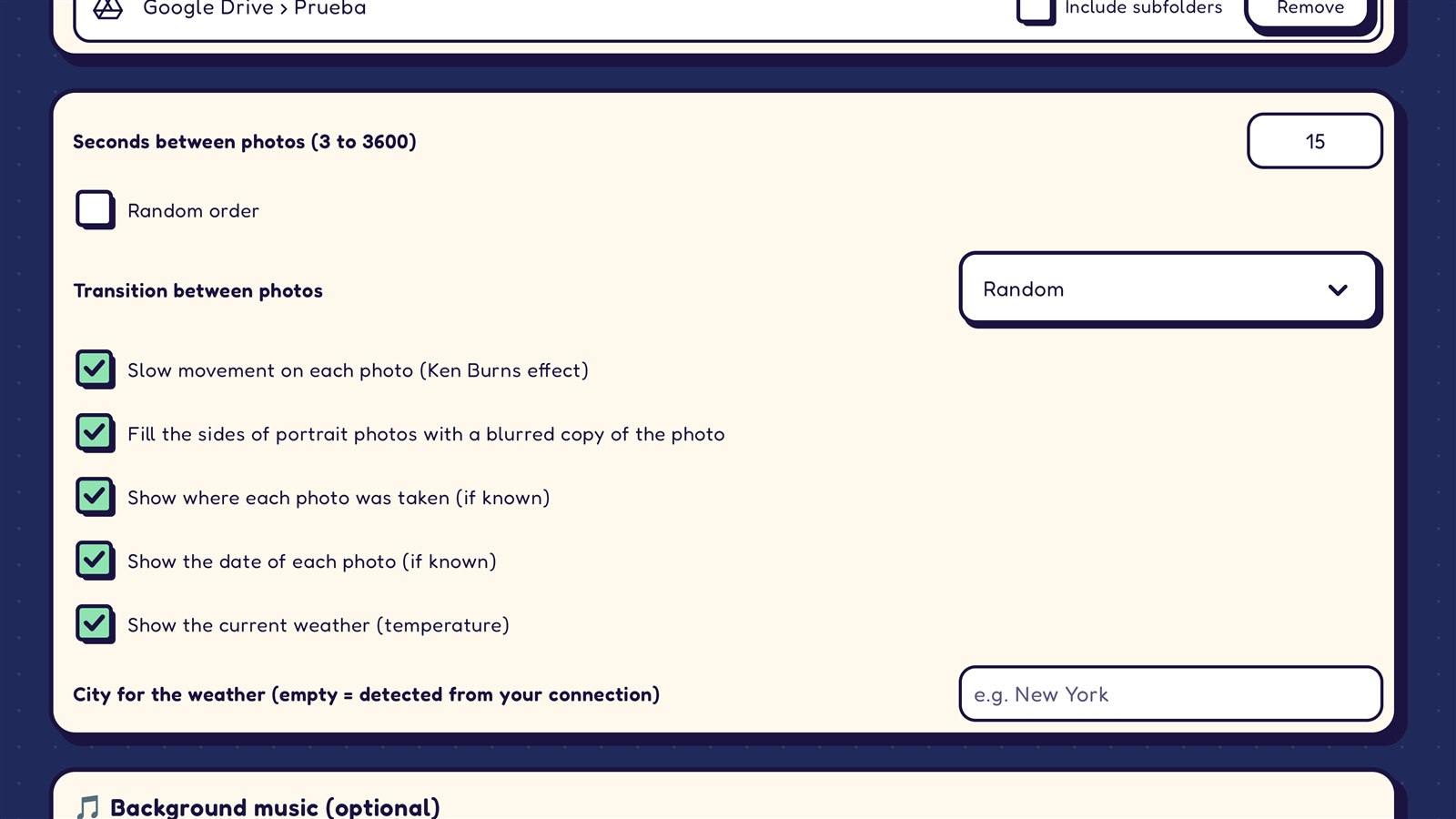
Seconds between photos
How long each photo is shown. You can set from 3 to 3600 seconds (one hour). If you leave it empty, it’s 15 seconds.
You can also change it without leaving the slideshow, with the clock icon: see The slideshow and the remote.
Random order
- Checked: the photos are shown shuffled.
- Unchecked: they are shown folder by folder, in alphabetical order by file name. If your photos have the date in their name (as phones do), they are shown from oldest to newest.
If the same photo is in two folders of the album, it’s only shown once.
Transition between photos
How it moves from one photo to the next:
| Option | What you see |
|---|---|
| Fade | One photo blends smoothly into the next. |
| Fade to black | The photo darkens to black and the next one appears. |
| Slide | The new photo slides in. |
| Zoom + fade | Fades with a slight zoom in. |
| Random | One of the above each time. |
| None (instant change) | Changes all at once. |
The checkboxes
Slow movement on each photo (Ken Burns effect)
Each photo zooms or pans very slowly while it’s on screen, like in documentaries. It gives a sense of movement.
Fill the sides of portrait photos with a blurred copy of the photo
Portrait photos (and those that don’t fill the screen) leave bands on the sides. With this checkbox, those bands are filled with the same photo, enlarged, blurred and darkened, instead of black.
Show where each photo was taken (if known)
Where the photo was taken appears at the bottom left. Pixetia gets it:
- from the GPS location that phones and many cameras store in the photo: it appears with the 📍 icon, for example “📍 Rome, Italy”;
- or, if the photo doesn’t have one, from its folder name: it appears with the 📁 icon, for example “📁 Rome” for a folder called “2024-05 Rome”.
Show the date of each photo (if known)
The date the photo was taken appears, for example “May 3, 2024”. It comes from the photo’s own data or, if it doesn’t have any, from the folder name (for example, “2024-05 Rome” gives “May 2024”).
Show the current weather (temperature)
The current weather (an icon and the temperature) and the city name appear at the bottom right.
City for the weather: type your city, for example “New York”. If you leave it empty, Pixetia works it out from your internet connection, which sometimes gives a nearby city instead of yours.
Background music
At the end of the form is the “🎵 Background music (optional)” section. It’s explained in Background music.