9. Tell me about this photo (AI)
A free artificial intelligence (AI) looks at the photo you are watching and tells you about it: where it might be, a fun fact, a photographer’s opinion or a story. You can also play at guessing where it was taken.
- It’s optional: if you don’t connect it, nothing is sent.
- The photo is only sent when you ask, one at a time.
- You need a free OpenRouter account (a service that gives access to several AIs) and you must be over 18.
- It’s free and comes with no guarantees: sometimes it’s busy, gets things wrong or stops working.
What is sent
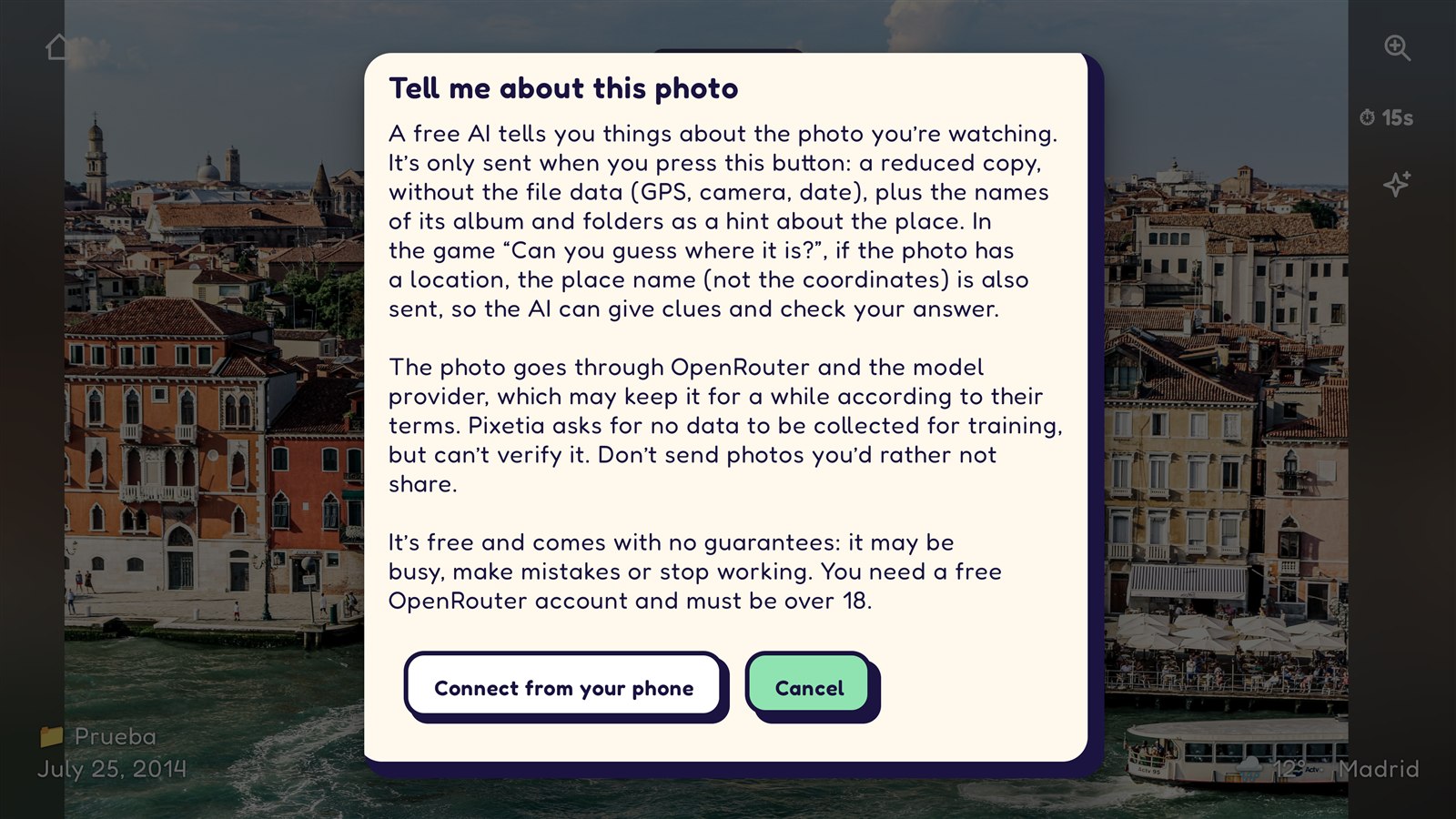
- A reduced copy of the photo, without the file data (no GPS, camera or date).
- The names of the album and its folders, as a hint about the place.
- Only in the guessing game, and if the photo has a location: the place name (for example “Rome, Italy”), not the coordinates.
The photo goes through OpenRouter and the company behind the AI model, which may keep it for a while according to their terms. Pixetia asks them not to use it to train their AIs, but it can’t check that. Don’t ask about photos you’d rather not share.
The AI is set up not to identify the people in the photos by their face.
Connecting the AI (first time only)
- During the slideshow, press ↑ or ↓ to open the icons, choose the AI icon ✨ and press OK.
- “Tell me about this photo” appears, explaining what is sent. Read it. If you agree, press Connect from your phone.
- Scan the QR code with your phone (on the same Wi-Fi as the TV). See Using your phone.
- On the page that opens on your phone, tap Create the key on OpenRouter. Sign in (or create your free account) and create a key with a credit limit of 0. That way you can’t be charged anything.
- Copy the key (it starts with
sk-or-), go back to the Pixetia page, paste it and tap Send to TV. - When “Done: AI connected” appears, the TV lets you choose the question.
The key is only stored on your TV.
Asking about a photo
- When you see a photo you’re interested in, open the icons and choose the AI ✨.
- The first time in each session, Pixetia reminds you what is sent. Press Got it to continue.
- Choose what you want to know:
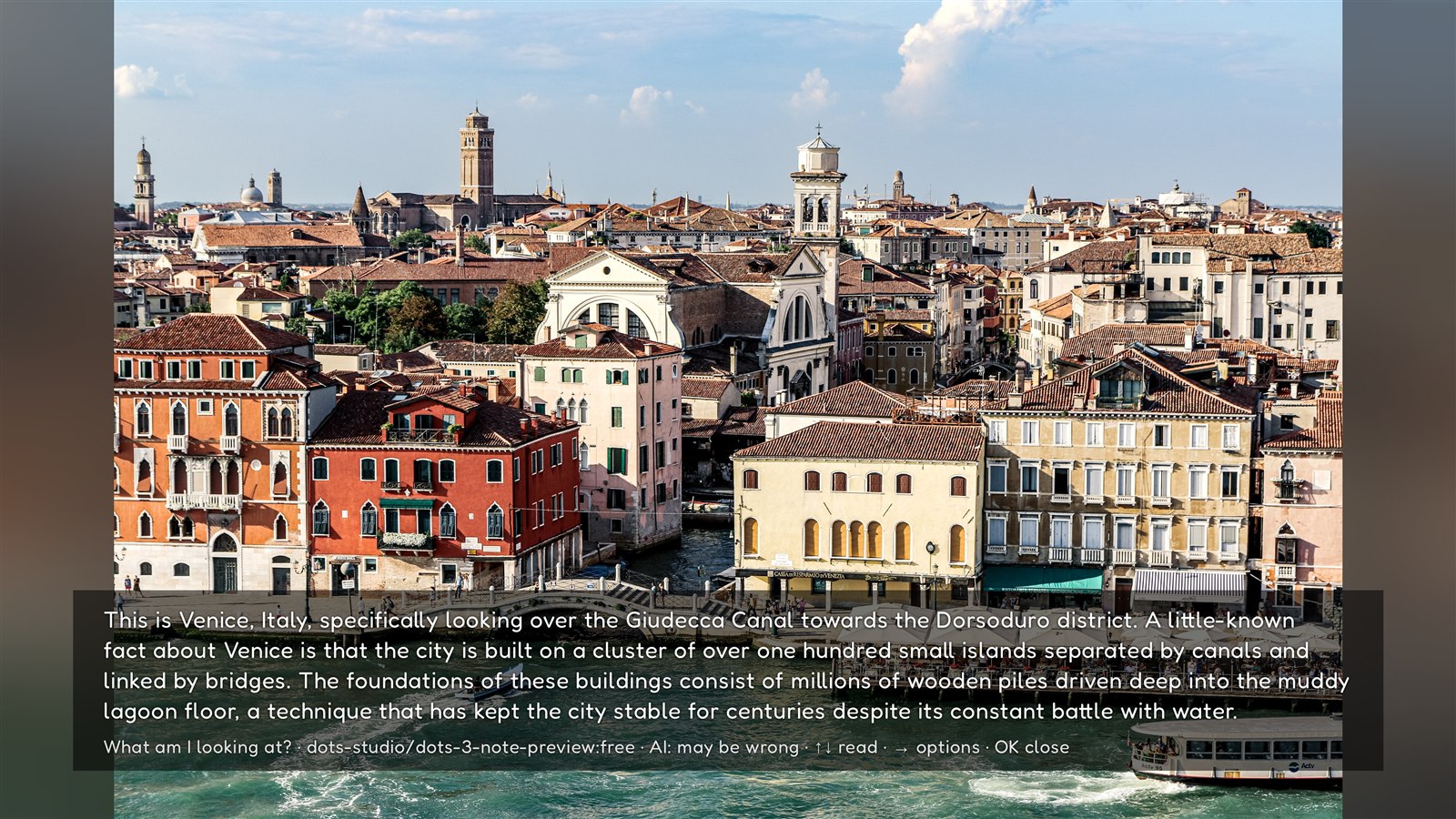
- What am I looking at?: where it might be and a fun fact.
- A photographer’s opinion: what’s good about the photo and how it could be improved.
- Tell me a story: a short story inspired by the photo.
- Game: can you guess where it is?: see below.
- “Sending the photo to the free AI…” appears and, shortly after, the answer. The slideshow stays paused while you read it.
With the answer on screen:
- ↑ ↓: scroll up and down if the text is long.
- →: more options: “Ask something else”, “Ask again” or “Disconnect the AI and delete the key”.
- OK or Back: close and continue the slideshow.
The game: can you guess where it is?
- Choose Game: can you guess where it is?.
- The AI gives you a clue (🤔) without naming the place.
- Think of your answer and press OK to see the solution (📍).
If the photo has a location (GPS), Pixetia tells the AI the place name (for example “Rome, Italy”) so that its clues are correct; the coordinates are not sent. If it doesn’t, the AI tries to recognize the place by itself, and the solution says so: “The AI recognized it in the photo: it may be wrong.”
If the AI can’t tell for sure where the photo was taken, it says so and doesn’t play, so as not to cheat. Try another photo.
When the AI icon isn’t there
The ✨ icon doesn’t appear on photos from other people’s public profiles (for example, from social networks), because those photos aren’t yours.
If it doesn’t work
- “The free models are busy or today’s quota has run out”: try again in a while.
- “Right now no free model meets Pixetia’s privacy conditions”: the photo hasn’t been sent. Try again later.
- “OpenRouter doesn’t accept the saved key…”: the key has been deleted from the TV. Connect it again.
Disconnecting the AI
With an answer on screen, press → and choose “Disconnect the AI and delete the key”. You can also delete the key from your OpenRouter account.