
1. Getting started
What happens the first time you open Pixetia, and every time you open it again.
Opening Pixetia
- On the TV home screen, look for the Pixetia icon. If you can’t see it, look for it in the list of apps.
- Select it with the arrows and press OK.
- The Pixetia logo appears for a moment. You can skip it by pressing any key.
Choosing the language (first time only)
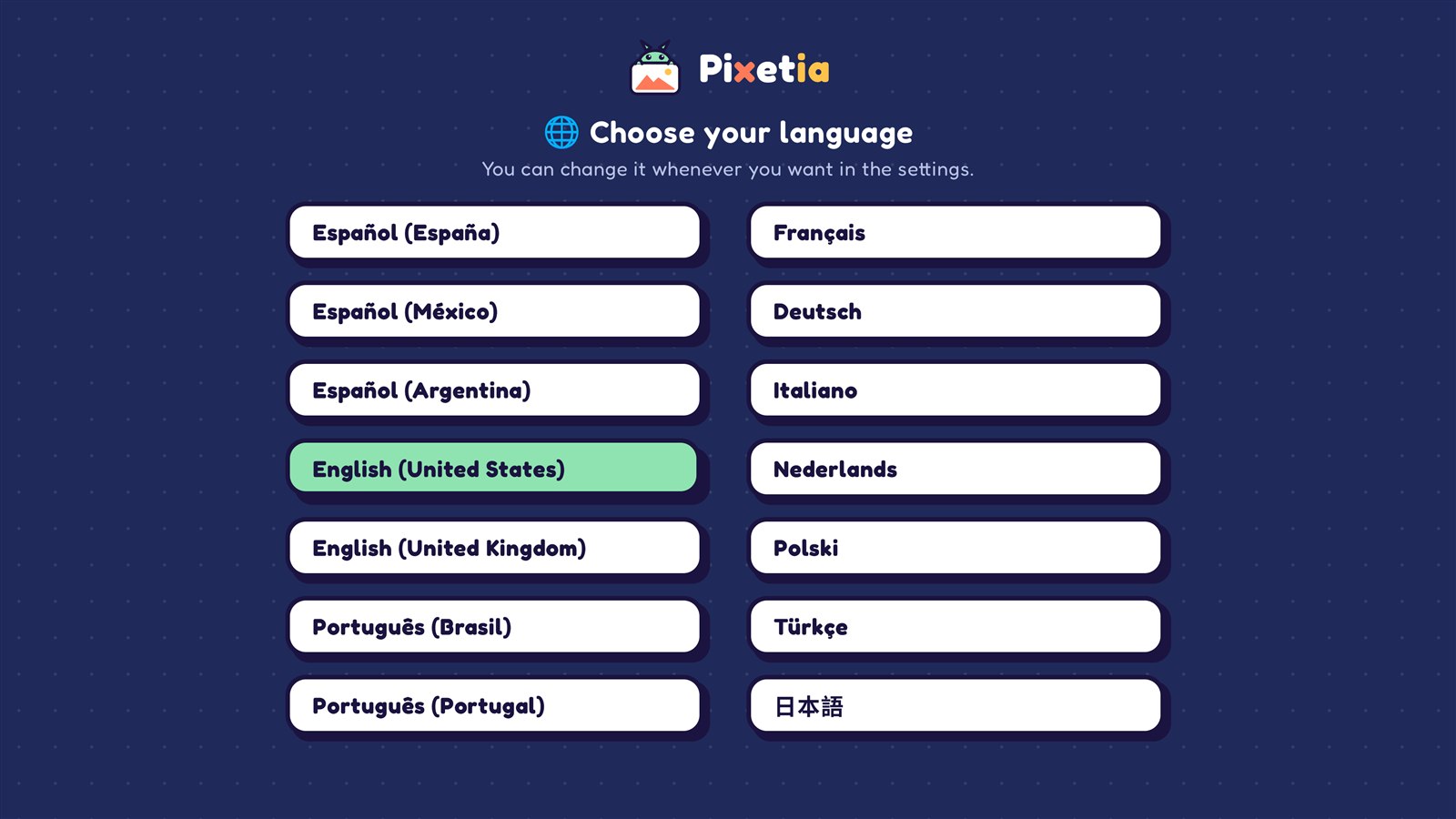
The first time, the “🌐 Choose your language” screen appears, with 14 languages in two columns.
- Your TV’s language is already selected. If that’s the one you want, press OK.
- If you prefer another one, move to it with the arrows and press OK.
You can change it whenever you want. See Changing the language.
Creating your first album
In Pixetia, an album is a group of photos you want to watch together. It can come from a single folder or from several, even if they are in different places (for example, a folder on your computer and a Google Photos album).
If you don’t have any album yet, Pixetia takes you straight to + Add album and asks “Where are your photos?”. Follow the steps in Adding an album.
When you finish, press Save and use ▶ and the slideshow starts.
The next times
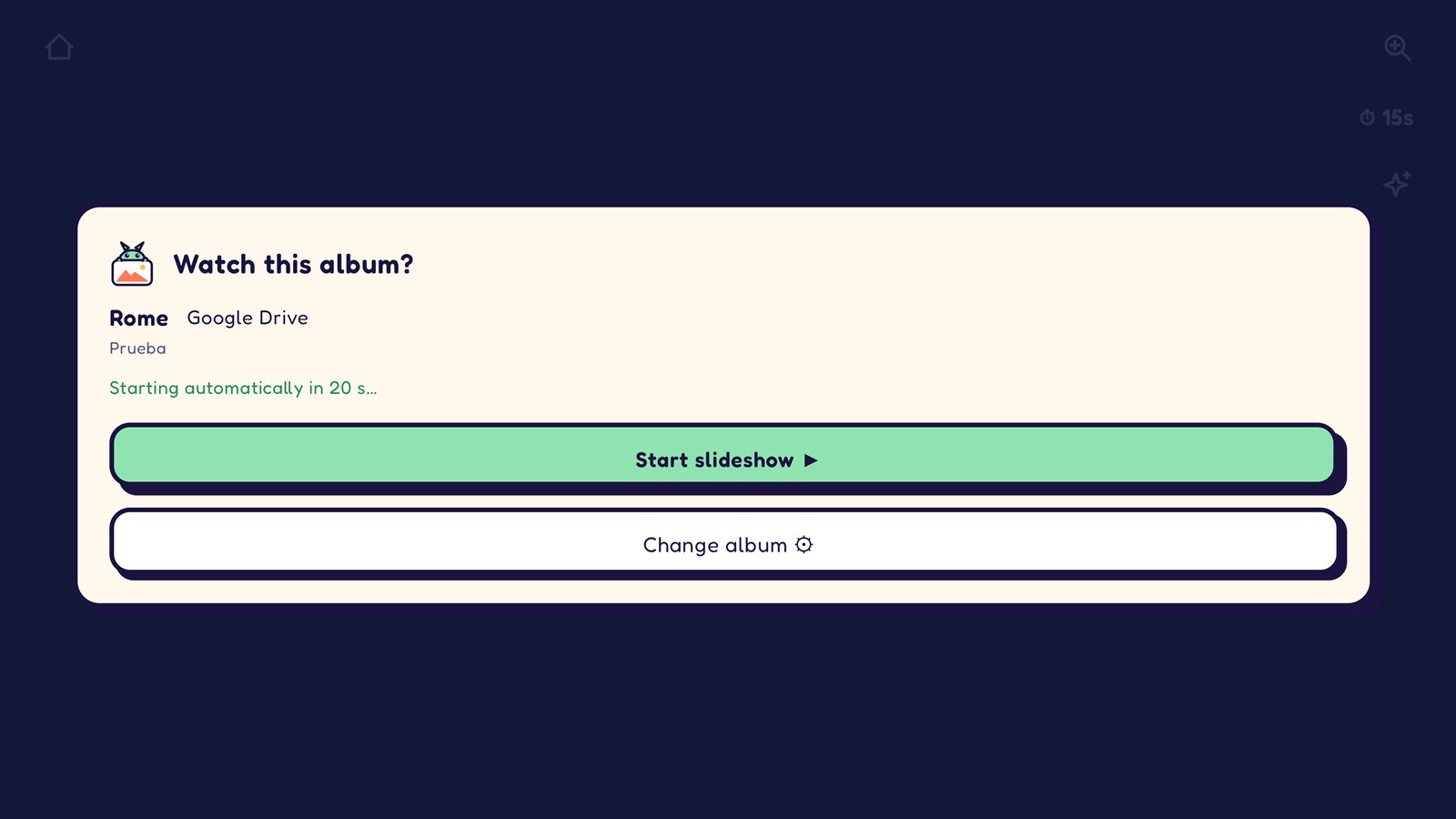
Once you have an album, when you open Pixetia the “Watch this album?” prompt appears. It shows the name of the album you watched last time and where its photos come from.
- Start slideshow ▶ starts showing the photos.
- Change album ⚙ takes you to My albums, to choose another one or change something.
- If you don’t press anything, the slideshow starts on its own: you’ll see the countdown “Starting automatically in 45 s…”.
Use ↑ and ↓ to choose between the two buttons. The Menu key on the remote, if it has one, also opens Change album ⚙.
Leaving Pixetia
During the slideshow, press Back. Pixetia asks “Quit Pixetia?”: choose Quit or Keep watching.
You can also press the home button (the little house) on the remote: you go back to the TV home screen and the slideshow stops.