
5. Photos in the cloud
How to watch your photos from Google Photos, Google Drive, OneDrive and Dropbox on the TV.
There are two ways to connect the cloud:
- With a shared link (Google Photos and Google Drive). A shared link is a web address that lets anyone see an album or a folder without signing in. Careful: anyone who has the link can see it, so don’t post it publicly.
- With your account (OneDrive and Dropbox). You sign in from your phone and choose the folders with the remote. Pixetia can only see your files, not change them.
In no case are your photos copied anywhere else. If you add new photos to the album or folder, they’ll appear on the TV on their own.
Google Photos
On your phone: create the album link
- Open Google Photos and go into the album you want to watch on the TV.
- Tap Share and then Create link.
- Tap Copy.
On the TV: send the link
- In “Where are your photos?”, choose Google Photos.
- Press Send the link from your phone, scan the QR code with your phone, paste the link and tap Send to TV. This is explained in detail in Using your phone.
- You can also type the link with the remote in the “Or type it here: photos.app.goo.gl/…” field and press Add.
Pixetia checks the album (“Checking the album…”) and adds it.
Google Drive
On your phone or computer: share the folder
- In Google Drive, find the folder with the photos.
- Tap Share.
- Under General access, choose Anyone with the link (with Viewer permission).
- Tap Copy link.
On the TV: send the link
- Choose Google Drive.
- Press Send the link from your phone and follow the steps (Using your phone), or type the link in “Or type it here: drive.google.com/drive/folders/…” and press Add.
Pixetia also shows the photos in subfolders if you check “Include subfolders” on the folder.
OneDrive
- Choose OneDrive.
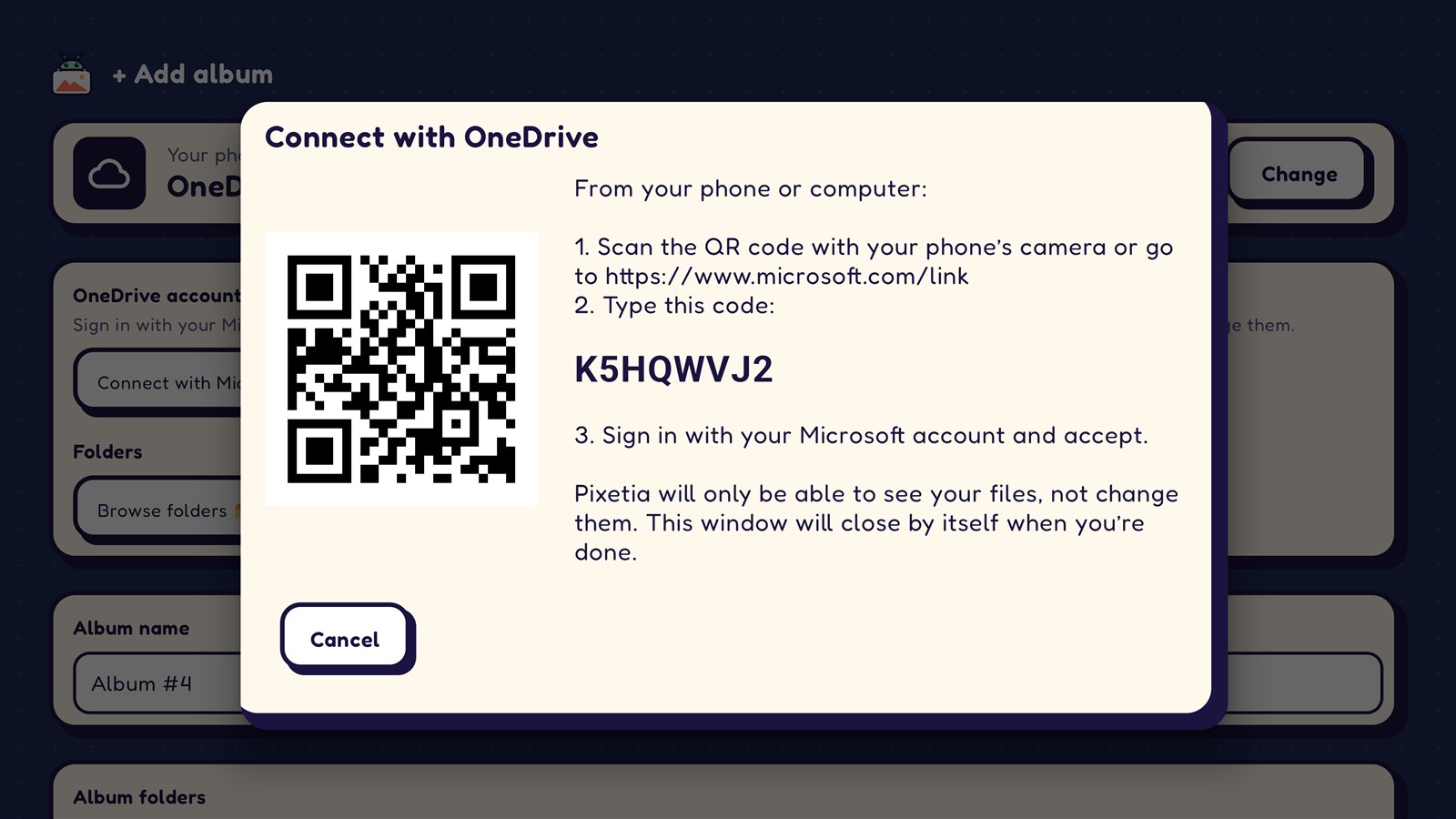
- Press Connect with Microsoft. A QR code and a letter code appear.
- On your phone, scan the QR code (or go to the address shown) and type the code shown on the TV.
- Sign in with your Microsoft account and accept.
- The window on the TV closes on its own and you’ll see “Connected as …”.
- Now choose the folders with the browser.
To disconnect the account, press Disconnect. Albums with OneDrive folders will stop showing their photos until you connect it again. Your files are not deleted.
Dropbox
- Choose Dropbox.
- Press Connect from your phone and scan the QR code with your phone (connected to the same Wi-Fi as the TV).
- On your phone, tap Sign in to Dropbox, sign in and tap Allow.
- Dropbox gives you a code. Copy it, go back to the Pixetia page, paste it and tap Send to TV.
- On the TV, choose the folders with the browser.
If it says the code isn’t valid when you paste it, tap Sign in to Dropbox again to get a new one.
iCloud Photos, VERO and Flickr
They appear in gray with the text “pending approval”. Pixetia is waiting for Apple, VERO and Flickr to approve its use. In the meantime they can’t be chosen; pressing them only shows a notice. They will be enabled in an app update.